
Logging in
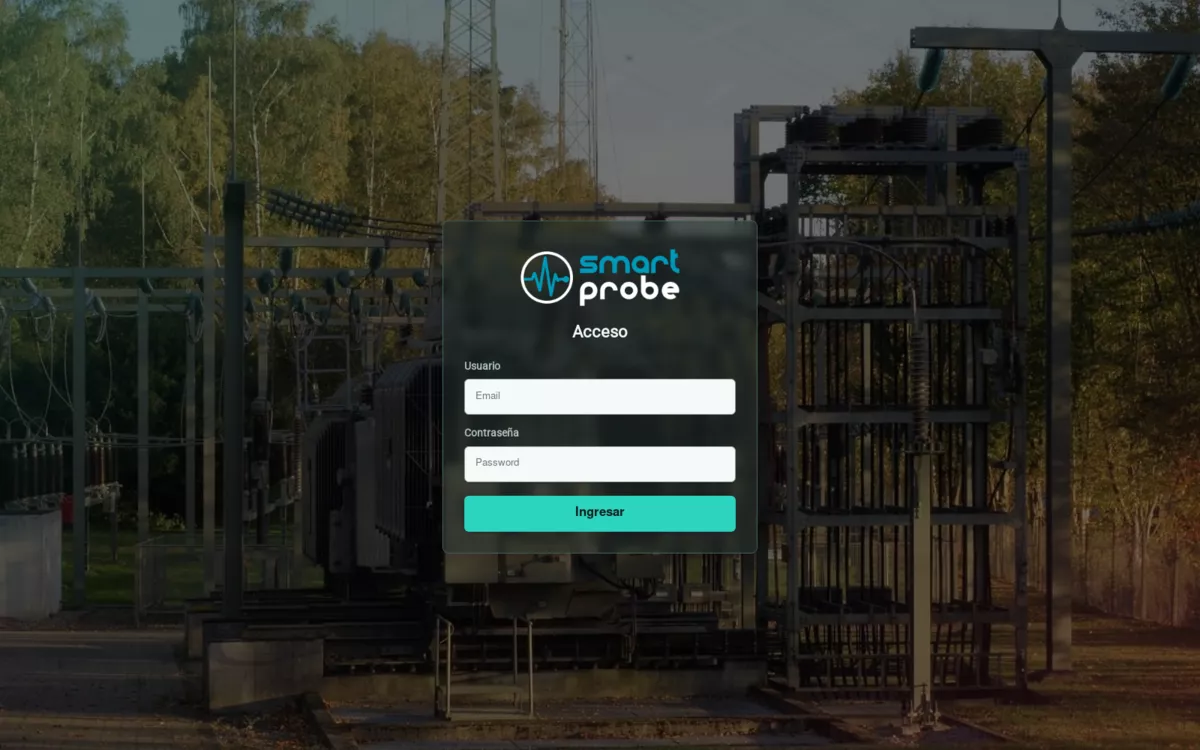 Login screen.
Log in with your username (your email) and your password, then tap Log in.
There’s no automatic password recovery: if you forgot yours, ask whoever administers your SmartProbe account to reset it.
If you can’t log in, you may see one of these messages (shown in Spanish by the backend):
- Usuario no encontrado (“User not found”) — check that your email is typed correctly.
- Contraseña incorrecta (“Incorrect password”)
- Usuario deshabilitado / Usuario expirado (“User disabled” / “User expired”)
- Cliente deshabilitado / Cliente expirado (“Account disabled” / “Account expired”)
If your account’s subscription has expired, you’ll see a notice asking you to get in touch to renew it, with the option to tap Log in again to continue anyway.
The main menu
The ☰ icon in the top-left corner opens the side menu. From there you can reach:
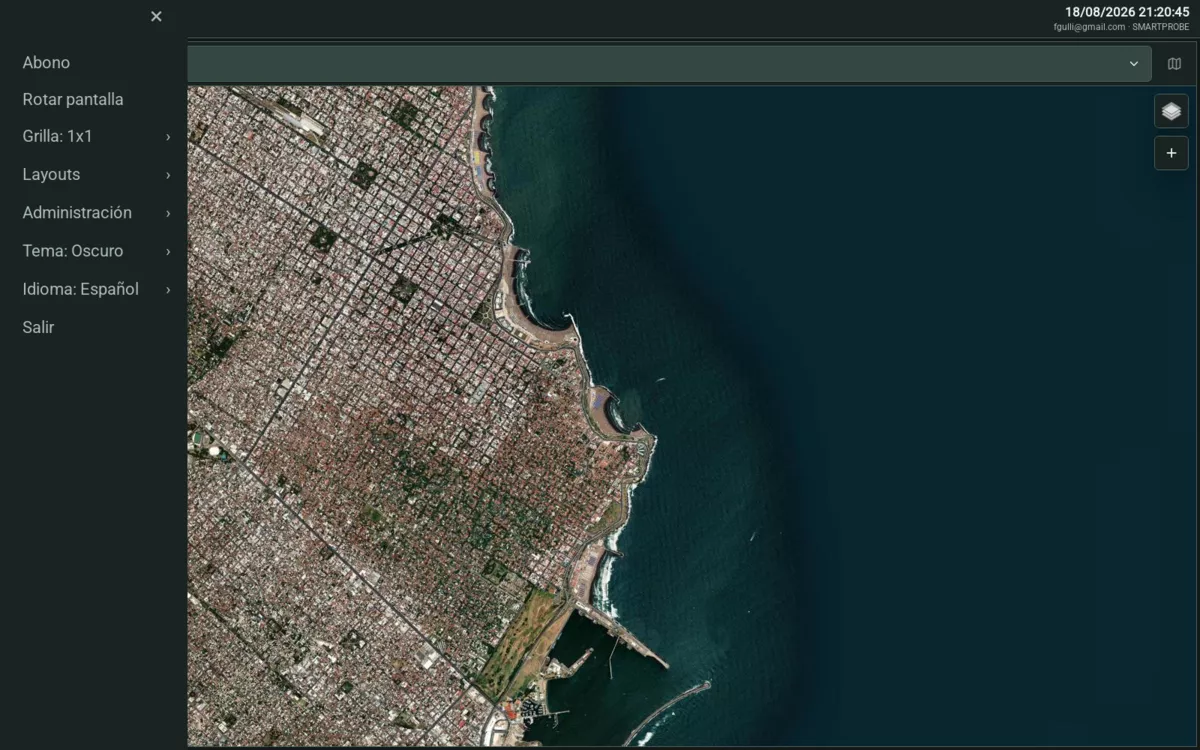 Side menu.
- Rotate screen — automatically rotates between panels.
- Grid — if your plan includes it, to split the screen into several panels (see Multi-panel grid).
- Layouts — your saved grid combinations.
- Administration — only visible if your user has an administrator role on your account.
- Theme
- Language
- Install app — if your browser supports it (see Installable app).
- Log out
Changing the visual theme
Menu → Theme: choose between Dark, Light or Slate. It’s saved in your browser, so you won’t need to pick it again next time.
Changing the language
Menu → Language: Español, English or Português. This is also saved in your browser.
The login screen has no language or theme selector — both are chosen from the side menu, once you’re already logged in.